Sets and drawing logs
A Set turns a project's drawing PDFs into one list of sheets that you can tag, sort, step through and publish, without combining the files. It keeps each sheet's revisions stacked and writes the drawing log for your transmittals.
- You'll learn
- How to build and tag a Set, stack revisions, move from sheet to sheet, publish the set and export its drawing log.
- Where it lives
- File ▸ Sets and the Sets panel Alt+X
- Next sheet
- Ctrl+Right, and Ctrl+Left to go back
What a Set is
A drawing set usually arrives as a folder of PDFs, one per sheet, or as one PDF with every sheet in it. A Set is MarkupRight's list of those sheets. Each sheet is a whole PDF or one page of a PDF, and carries tags such as its sheet number, name and revision. The Set is saved as a small .bex file beside your drawings. It points at the PDFs: it never copies, combines or moves them.
- Tags. Values that describe a sheet. A new Set has Sheet Number, Sheet Name, Revision, Discipline, Sheet Type and Date, and you can add more.
- Revision stack. The issues of one sheet: the current one on top, earlier ones grayed beneath it.
- Category. An optional heading, such as Mechanical, that groups sheets in the panel.
Saving a Set writes only the .bex file. The one time a Set changes a PDF is when you stack a new revision and let it copy your markups forward and stamp the old sheet Superseded. See Revisions.
The Sets menu and panel
Every Set command is in File ▸ Sets. Until a Set is open, only New Set… and Open Set… are available. The revision commands also need one stacked sheet chosen in the Sets panel.
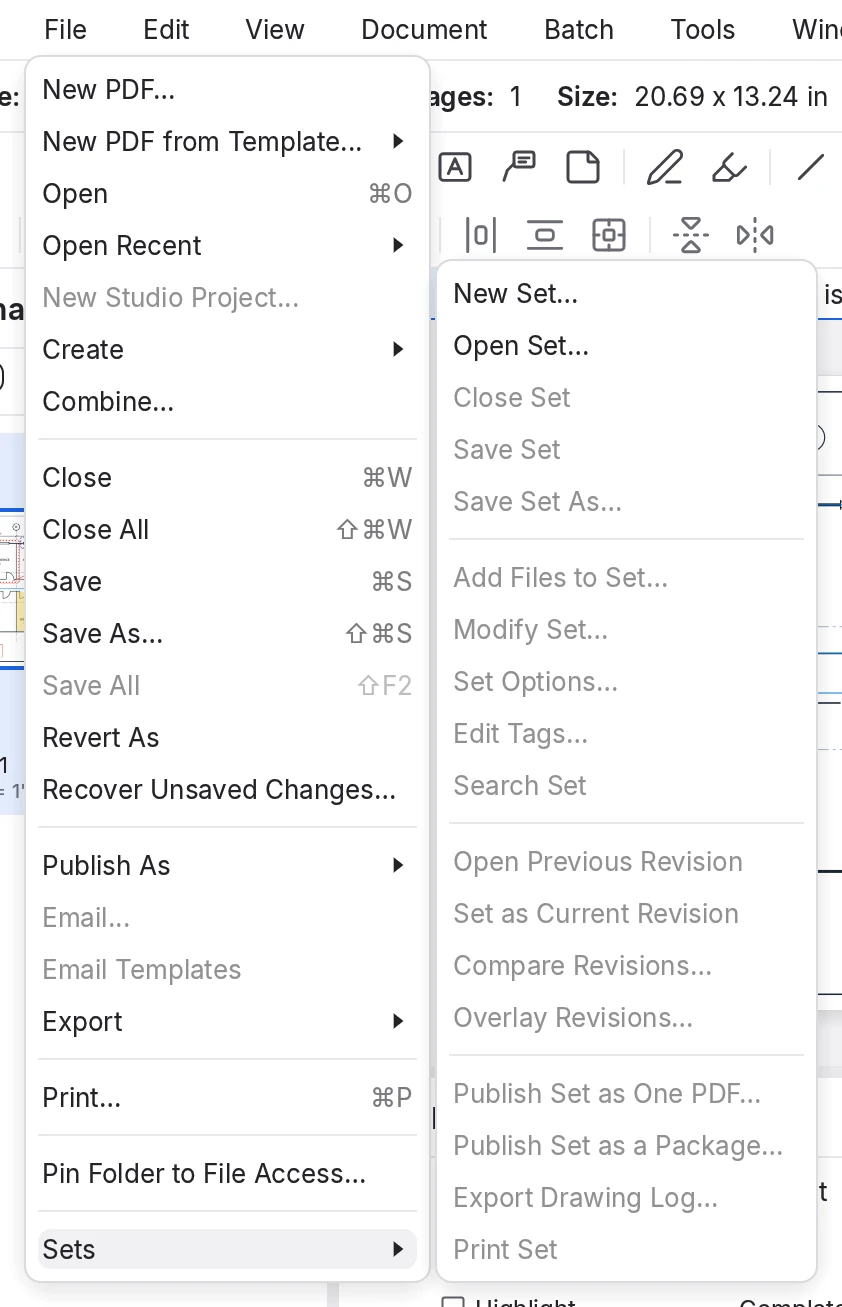 1
2
3
4
5
- Sets. The submenu at the foot of the File menu.
- Open and save the Set.
- Build and tag. Add Files to Set…, Set Options… (Modify Set… opens it too), Edit Tags… and Search Set.
- Revisions. Open, compare or overlay an earlier issue, or make it current.
- Publish one PDF, a package, the drawing log or a print run.
The Sets panel Alt+X shows the open Set as a list. It opens by itself when you create or open a Set.
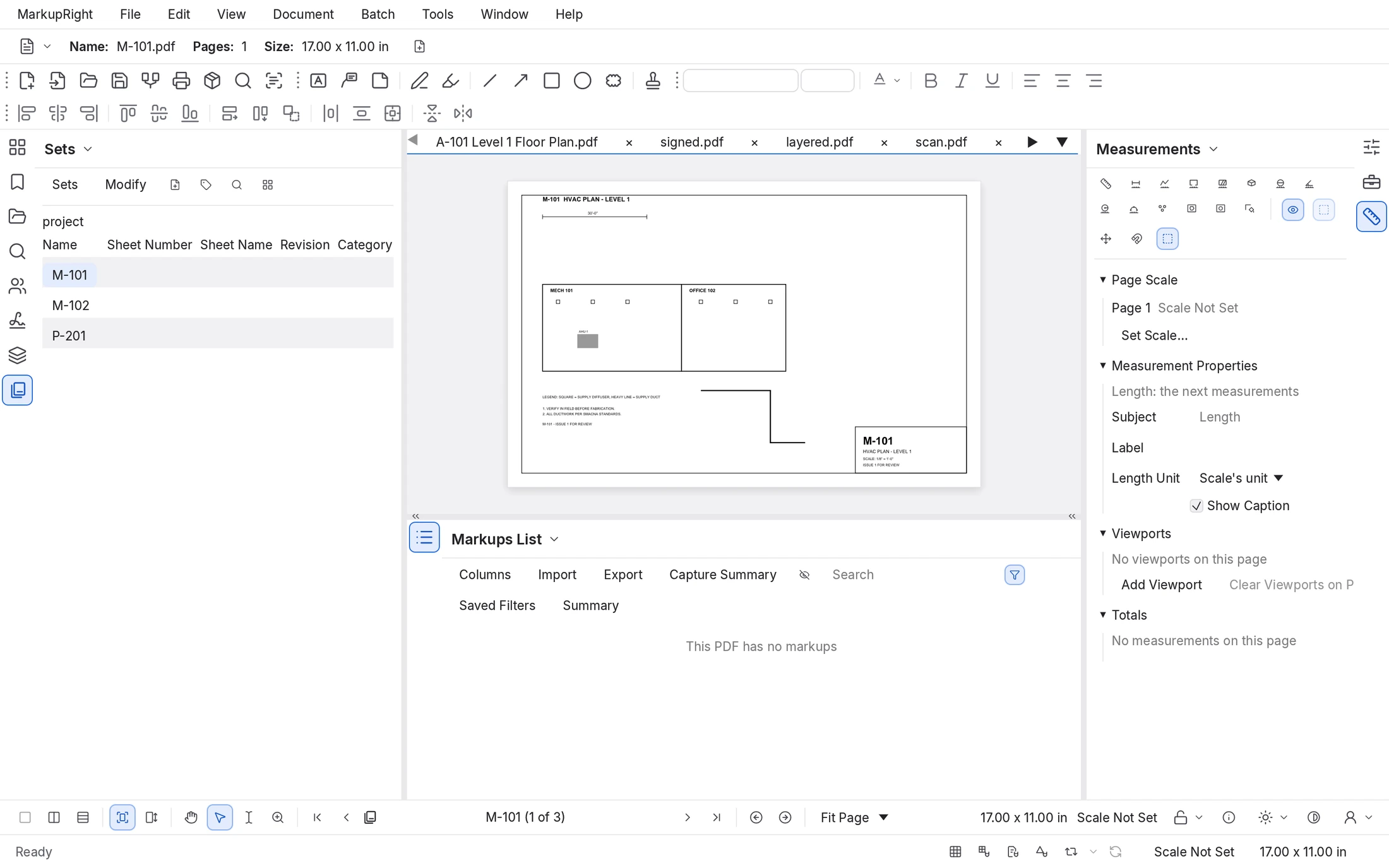 1
2
3
4
- Panel toolbar. The Sets and Modify menus, then Add Files to Set, Edit Tags, Search Set and Show or Hide Thumbnails.
- The Set and its sheets. The Set's name, then one row per sheet with its tag columns. An asterisk after the name means unsaved changes; a lock means the
.bexis read-only, so use Save Set As. - Sets icon. Shows or hides the panel.
- Navigation bar. Moves from sheet to sheet and shows where you are.
- Double-click a sheet to open it. Ctrl-click or Shift-click to choose several.
- Right-click a sheet for Open, the revision commands, and Remove from Set, which leaves the file alone.
- Hover over a sheet to preview its page.
- Missing files show in red. If the drawings moved, choose Modify ▸ Relink Missing Files… and pick their new folder.
Build a Set
To build a Set
- Choose File ▸ Sets ▸ New Set….
- Add the drawings with Add Files…, Add Open Files or Add Folder…. Tick Include Subfolders to take the subfolders too. A Set can also start empty.
- Keep Use Relative Paths (recommended) ticked, so that the Set finds its files again when you move or share the project folder.
- Optional: choose Options… to set sorting, categories and tags before the files are read. See Set Options.
- Choose OK and save the
.bexfile in the project folder, beside the drawings.MarkupRight reads the files, lists the sheets in the Sets panel and asks for their tags.
Add drawings later with Add Files to Set… or Modify ▸ Add Folder…. A password-protected PDF joins locked until you open it with its password. Save Set saves the list, and File Access keeps your recent Sets. One Set is open at a time.
Tag the sheets
Tags make a Set sortable and searchable, and the Sheet Number tag ties revisions together. In this version you type the values; reading them from the title block arrives in a later version.
Add Tags
When files join a Set, Add Tags asks for each new sheet's tags in turn (“Type the Sheet Number of …”). Type the value and press Enter, or choose OK.
- Skip leaves this one value empty.
- More ▸ Skip Document skips the rest of this sheet's tags.
- More ▸ Skip Tag stops asking for this tag on every remaining sheet.
The Tags grid then opens with just the new sheets for you to check: OK keeps your changes, Skip leaves the values as they are.
Before you add files, turn on the Discipline and Sheet Type auto tags in Set Options ▸ Tags. Both then follow from the sheet number (M-101 is Mechanical, Plans), and Add Tags asks only for Sheet Number, Sheet Name and Date.
Edit Tags
Edit Tags… opens the Tags grid for the whole Set. File Name, Page Label and the automatic tags are read-only, and empty cells are tinted so that you can see what's missing.
To fill many tags at once
- Choose Edit Tags in the Sets panel, or File ▸ Sets ▸ Edit Tags….
- Click a cell, then Ctrl-click or Shift-click more cells in the same column.
- Type the value in the field above the grid and choose Apply.
Every chosen cell takes the value.
- Choose OK to keep the changes, or Cancel to drop them.
The grid also has Add Tag, Remove Tag, Move Left and Move Right for the columns.
Set Options
Set Options… controls how this Set sorts, groups and stacks its sheets. A new Set starts from your defaults in MarkupRight ▸ Preferences ▸ Sets.
| Tab | Option | Default | What it does |
|---|---|---|---|
| Sorting | Show | All ticked | What the Name column is built from, and which tag columns show. |
| Sorting | Sort By | File Name, Page Label | Or Page Label Only, or File Name, Page Index. Sort Tagged Sheets By Sheet Number (on) puts numbered sheets in number order. |
| Sorting | Sort Order | Alphanumeric Ascending | Alphanumeric reads numbers as numbers, so A-2 comes before A-10. |
| Sorting | Stack Multi-Page Documents | Off | Keeps a multi-page PDF as one sheet. |
| Sorting | Stack Revisions By | Sheet Number | Sheets whose ticked tags match are proposed as revisions of each other. |
| Sorting | Previous Revisions, Current Revisions | Gray Out, Highlight | Hide, Gray Out, Cross Out or Show earlier issues; Highlight the current one, or Stack it with an arrow and a count. |
| Sorting | Copy markups to newly added revisions, Stamp previous revisions 'Superseded' | On, on | What stacking does to the files. See Revisions. |
| Categories | Categories | Off | Manual asks which category each new file belongs to; Auto files sheets by the template's filters. |
| Categories | Categorize By, Template | File Name | Match filters against the file name or the sheet number. Start from the built-in Construction template or one you kept with Save As…. |
| Tags | The tag list | Six tags | Add a Text, Number or Date tag; reorder or remove tags. |
| Tags | Auto Tag options | Revision on | Fill Revision, Discipline and Sheet Type from the sheet number (Discipline and Sheet Type follow AIA standards). |
A category filter matches anywhere in the name, is case-sensitive, and the longest match wins: with the Construction template, AD-101 goes under Architectural Demolition rather than Architectural. Unmatched sheets go under Uncategorized.
Revisions
When a new issue arrives, add it to the same Set. A new sheet whose Sheet Number matches an existing sheet is proposed as that sheet's next revision. A sheet without a sheet number is never paired, so type the numbers in Add Tags.
To add a new issue as revisions
- Choose Add Files to Set… and pick the new issue's PDFs.
- In Add Tags, type each sheet's Sheet Number exactly as before (M-101, not M101), then check the new sheets in the Tags grid and choose OK.
The Modify Pages? dialog lists the matches, such as “Matched Pages: 2”.
- Check the pairs. A red Conflict means a sheet matches more than one: choose the right one under Use:, or Leave Out. To pair leftovers, click a sheet under Unmatched Current, then one under Unmatched Revised.
- Choose OK.
Each new sheet stacks on top as Rev 1 (then Rev 2, and so on), with the sheet it replaces grayed beneath it.
Skip adds the files without stacking them. Once sheets are stacked, use the revision commands in File ▸ Sets or on a sheet's right-click menu:
- Open Previous Revision opens the sheet's earlier issue.
- Set as Current Revision makes an earlier issue current again, for example when an issue is withdrawn.
- Compare Revisions… and Overlay Revisions… open the batch compare or overlay wizard with the two issues already paired. See Compare and overlay.
- Remove from Revision Stack takes a sheet out of its stack and keeps it in the Set.
While the Set is open, a hyperlink to a stacked sheet opens its latest revision.
With the default Set Options, OK in Modify Pages? copies each earlier sheet's markups onto its new revision and stamps the earlier sheet Superseded, then saves both PDFs. Signed files are refused, and files open in MarkupRight are left alone (“close it to copy markups and stamp it”). To stack without touching the files, first turn off Copy markups to newly added revisions and Stamp previous revisions 'Superseded' in Set Options.
Move from sheet to sheet
While a Set is open in the list view, the navigation bar works on sheets instead of pages. It moves through the current revisions in the panel's order, even when the Sets panel is closed.
| Control | What it does | |
|---|---|---|
| First, Previous, Next, Last | Open the first, previous, next or last sheet. From the keyboard: Ctrl+Left and Ctrl+Right. | |
| Page field | Shows the sheet and its place, such as M-101 (1 of 3). Type a sheet number, name, label or tag value, or a place such as 4, and press Enter. | |
| Home, End | Home and End still go to the first and last page of the document in front. |
When a document outside the Set is in front, the field shows the Set's name and size, such as “project (– of 3)”; Next or First takes you into the Set. By default, each sheet opens in its own tab.
Search Set opens the Search panel with its scope set to Current Set, so one search covers every file in the Set. See Search.
Publish and print
- Publish Set as One PDF… opens Combine with the current sheets in the Set's order. Combine writes a new PDF and leaves the Set's files alone. See Create, save and export.
- Publish Set as a Package… makes a new PDF package that holds every file in the Set, earlier revisions included. It opens in a new tab: save it to keep it.
- Print Set opens Batch Print with every sheet. The panel's Sets ▸ Print Set menu also offers Print Latest Revisions and Print Previous Revisions.
Sets ▸ Select in the panel chooses All, Latest Revisions or Previous Revisions for you.
Export a drawing log
A drawing log is the sheet index you send with a transmittal: one row per sheet, with its number, name and revision. Export Drawing Log… writes it from your tags as an Excel workbook, a CSV file or a PDF.
To build a Set and export its drawing log
- Choose File ▸ Sets ▸ New Set…, then Add Folder… and the project's drawing folder. Choose OK and save the
.bex. - In Add Tags, type each sheet's Sheet Number and Sheet Name; choose More ▸ Skip Tag for any tag you don't need. Then choose Save Set.
- Choose File ▸ Sets ▸ Export Drawing Log….
- On Select and Order Columns, untick the columns you don't need and use Up and Down to order them. Choose Next >.
- Under Export as:, choose PDF (.pdf). Check the Title, which starts as “[Set Name] Drawing Log”, and the Export to folder, which starts as the Set's folder.
- Choose Done.
The log is written and opens: “Drawing log exported to …”.
The columns are the Set's tags plus Revision, Superseded, Label, File Name, Category, Set Name, Page Number, Page Count, Modified and File Path. The second page also has:
- Prepend Set Name to Title and Append Date to Title. The title is also the file's name.
- Exclude Superseded Sheets, which leaves out the earlier revisions listed after each current sheet.
- Create Hyperlinks (on): each row of a PDF log opens its sheet. The links are relative, so they keep working when the log moves with the drawings.
- Overwrite Existing File (off, so a second log gets a number such as “(2)”) and Open File After Creation (on).
- Automatically Export When Saving Set, which writes the log again every time you save.
- For a PDF: Add Drawing Log to Set (on), and Page Size, where <Auto Size> picks Letter, or Tabloid for more than eight columns. Landscape is the default.
For power users Expert
- Defaults for new Sets. MarkupRight ▸ Preferences ▸ Sets Ctrl+Comma has four pages (Set Options, Sorting, Categories, Tags), stored under
sets.*keys such assets.relative_paths,sets.stack_by(tag names separated by commas) andsets.open_behavior(Open in Place, New Tab or New Tab in Front). Each Set keeps the values it was created with. - The
.bexfile is MarkupRight's own XML, with paths relative to its folder when Use Relative Paths is on. Elements this version doesn't know survive a save, and a Set from a newer MarkupRight is refused with a request to update. - Category templates are JSON files in the
set_templatesfolder of your settings folder. Separate one category's filters with semicolons (A-;AD); two categories can't share a filter. - Commands without menu entries run from Find Tools + Commands Ctrl+K: Go to Sheet… (jumps to the page field), First Sheet in Set, Last Sheet in Set, Select All Sheets, Select Latest Revisions, Select Previous Revisions, Print Latest Revisions, Print Previous Revisions and Show or Hide Set Thumbnails.
- Batch work. Every batch file list has Add ▸ Open Set..., and Batch Link's Save to Set keeps a link configuration in the
.bex. See Batch processing. - Automation. Fourteen
set_*tools, such asset_add_files,set_tags_set,set_revisions_pair,set_publishandset_drawing_log, drive Sets from scripts and AI assistants. See Command line and AI agents. Viewer mode keeps Set navigation but turns off building and editing.