Command line and AI agents
MarkupRight can work without its window. Scripts and scheduled jobs use the markupright command, and AI assistants use the same capabilities through the MCP connector: hundreds of tools for reading, marking up and measuring PDFs.
- Command line
markupright(on Windows terminals,markupright-cli)- AI assistants
- MarkupRight ▸ Preferences ▸ Admin ▸ MCP
- You'll need
- A licence or the trial. Viewer mode refuses batch jobs and the connector.
Where the program is
The command-line program is the MarkupRight app itself:
| Installed with | Program |
|---|---|
| macOS (the .dmg) | /Applications/MarkupRight.app/Contents/MacOS/markupright |
| Windows (setup.exe, for one user) | %LOCALAPPDATA%\MarkupRight\markupright.exe, with markupright-cli.exe beside it |
| Windows (MSI, for the whole computer) | C:\Program Files\MarkupRight\markupright.exe, with markupright-cli.exe beside it |
On Windows, markupright.exe is a windowed program, so opening it from the Start menu or a PDF doesn't leave a console window behind it. The flip side is that Command Prompt and PowerShell neither show its output nor wait for it. In a terminal, type markupright-cli instead: it runs the same commands, shows their output, returns their exit code and stops them when you press Ctrl+C. AI assistants can start markupright.exe directly, because they read its output through pipes.
Commands
| Command | What it does |
|---|---|
markupright <files> | Opens the window with the files in tabs. Images and text files open as new PDFs, and a web address opens in a WebTab. |
markupright --combine <files> | Opens the Stapler to combine the files into one PDF. |
markupright --convert <files> | Opens the Stapler to convert each file to its own PDF. |
markupright --version | Prints the installed version, for example MarkupRight 1.0.1. |
markupright --selftest | Checks that the PDF engine works without opening a window, and prints self-test passed. |
markupright batch <feature> … | Runs a Batch menu job over a list of files. More below. |
markupright mcp | Serves MarkupRight's tools to an AI assistant. More below. |
markupright --check-update [--channel stable|beta] | Says whether a newer version is published. It never downloads. |
markupright --activate <key> [--name <computer>] | Activates a licence key on this computer. |
markupright --deactivate | Frees this computer's seat. |
markupright --license-file <path> [--machine] | Installs a licence file; --machine installs it for every user (needs administrator rights). |
markupright --license-status | Prints the licence state as one line of JSON, for inventory scripts. |
Exit codes
| Code | Meaning |
|---|---|
0 | Done (for batch jobs: every file was done). |
1 | Something failed (for batch jobs: at least one file). |
2 | Usage error, or the MCP connector is turned off. |
3 | Refused: MarkupRight is in viewer mode. |
4 | The licence server refused the request. |
5 | The network couldn't be reached. |
# macOS: check an installation from Terminal
/Applications/MarkupRight.app/Contents/MacOS/markupright --version
/Applications/MarkupRight.app/Contents/MacOS/markupright --selftest
# Windows: the same checks from PowerShell
& "$env:LOCALAPPDATA\MarkupRight\markupright-cli.exe" --version
& "$env:LOCALAPPDATA\MarkupRight\markupright-cli.exe" --license-statusBatch jobs from the command line
Every job on the Batch menu can run from a script, for example overnight on a server. You give it a file list (a .bcx file, the same kind the Batch dialogs save with Save…) and the job's options.
<?xml version="1.0" encoding="UTF-8"?>
<markupright-batch version="1">
  <file path="A-101 Level 1 Floor Plan.pdf" pages="all"/>
  <file path="A-102 Level 2 Floor Plan.pdf" pages="1"/>
</markupright-batch>
The pages of each file are all, current, even, odd, landscape, portrait, or page numbers such as 1,3,5. Then:
# Stamp the top right corner of every listed page
markupright batch stamp --bcx issue.bcx --stamp "Approved.pdf" --anchor top_right

# Make scanned pages searchable
markupright batch ocr --bcx scans.bcx --language en

# Protect every file with a saved security preset (passwords only from the environment)
export ISSUE_MASTER_PW='…'
markupright batch security --bcx issue.bcx --preset "Issue for Construction" --master-password-env ISSUE_MASTER_PW

# Slip-sheet a new issue into the current set, carrying the markups over
markupright batch slip-sheet --bcx paired.bcx --replace --copy-markups| Feature | Options |
|---|---|
rotate | --degrees 90|180|270|-90 |
split | --pages <n> or --size-mb <mb> or --bookmarks; --out <folder> |
headers, remove-headers | --template <file> (a template saved by the Header and Footer dialog) |
security, remove-security | --preset <name>, --presets <file>, --open-password-env <VAR>, --master-password-env <VAR> |
sign-seal | --id <p12> --password-env <VAR> with --field <name> or --rect x0,y0,x1,y1; --certify no-changes|form-fill|comments, --reason, --date-rect, --timestamp <url> |
ocr | --language <code> |
reduce, repair | none (files are rewritten in place) |
flatten | --no-recovery to flatten permanently |
link | --config <batch link xml> |
slip-sheet | --replace, --copy-markups, --unflatten-before, --flatten-after, --superseded, --keep-links, --extract-unmatched <folder> (a paired list) |
compare, overlay | --out <folder> (a paired list) |
stamp | --stamp <file>, --opacity, --scale, --anchor top_left…bottom_right, --x, --y, --rotation, --blend, --lock |
page-setup | --media '[w,h]', --crop '{"top":n,…}' |
summary | --summary <job.json> (a Markup Summary job) |
print | --printer <name> or --folder <folder>, --copies <n> |
Each file prints one line saying what happened. A mistake in the command prints the full list of features and options, with exit code 2.
Batch jobs change the listed files and save them where they are (split, compare and overlay write new files instead). Work on copies, or keep a backup, until you're happy with a job.
Connect an AI assistant (MCP)
The Model Context Protocol (MCP) is an open standard that lets an AI assistant, such as Claude, use tools on your computer. MarkupRight's MCP connector gives an assistant the same abilities you have in the app, as tools it can call: open a PDF, read its text, add markups, measure, compare, run batch jobs, build Sets and more. You ask in plain language ("cloud every room on A-101 that's under 100 sq ft") and the assistant does the steps.
The connector is off until someone turns it on.
To connect an AI assistant
- Choose MarkupRight ▸ Preferences, then Admin, then the MCP tab.
- Tick Enable the MCP connector and click Apply.
- Click Copy Configuration.
The configuration for your installation is on the clipboard.
- Paste it into your assistant's MCP configuration. In Claude Desktop, for example, that's Settings ▸ Developer ▸ Edit Config, which opens
claude_desktop_config.json. - Restart the assistant.
The assistant lists MarkupRight among its tools.
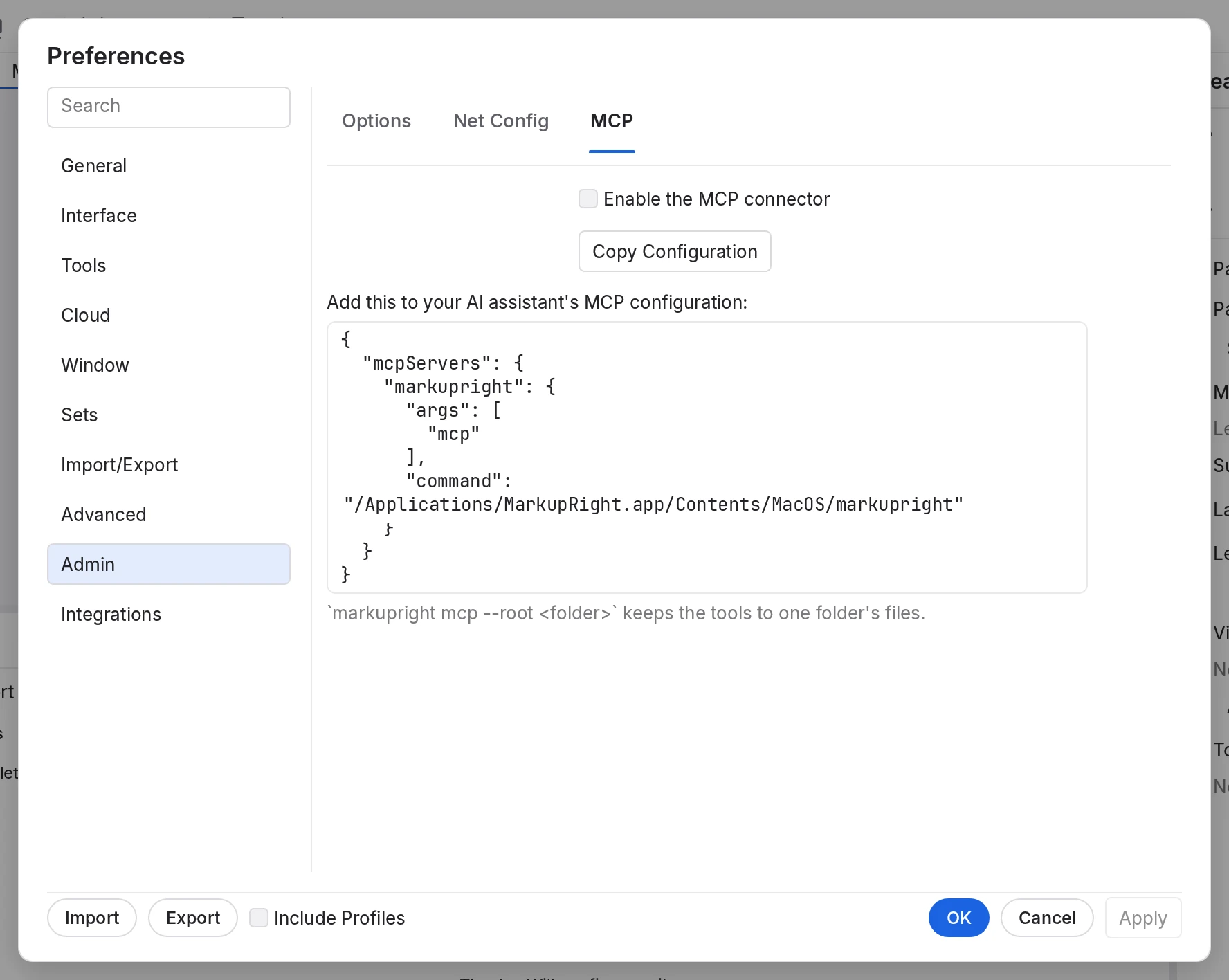
The configuration looks like this. Adding --root confines the assistant to one folder's files, which we recommend:
{
  "mcpServers": {
    "markupright": {
      "command": "/Applications/MarkupRight.app/Contents/MacOS/markupright",
      "args": ["mcp", "--root", "/Users/priya/Projects/Harbor St Clinic"]
    }
  }
}
On Windows the command is the path of markupright.exe, written with doubled backslashes: "C:\\Users\\priya\\AppData\\Local\\MarkupRight\\markupright.exe".
What an assistant can and can't do
- It works on copies in memory. Opening a document gives the assistant its own working copy. Nothing changes on disk until it saves (
doc_save), and every change can be undone (edit_undo). If it saves a file you have open, MarkupRight reloads it. - It stays inside its folder. With
--root, any path outside that folder is refused. - It respects locks and security. Locked markups are refused or skipped, and a document's passwords, permissions and signatures apply to the assistant just as they do to you.
- It needs a licence. The connector refuses to start in viewer mode. The Collab tools need a Team licence.
- It doesn't use the network. The assistant talks to MarkupRight through the program's input and output; no network port is opened.
Things to ask
- "Open A-101 Level 1 Floor Plan.pdf and list the open RFIs with their authors."
- "Set the scale of every page in M-101.pdf to 1/8 inch = 1 foot and give me the area of each room."
- "Compare issue1.pdf with issue2.pdf and summarise what changed on each sheet."
- "Stamp every PDF in the For Construction folder with the Approved stamp, top right."
- "Export a CSV of all markups that aren't Completed."
The tools at a glance
The connector offers about 335 tools, plus 25 Collab tools with a Team licence. The assistant reads their descriptions itself; this table helps you know what to ask for.
| Tools | What they cover | |
|---|---|---|
doc_* (47) | Open, inspect, save, combine, split, compare, overlay, export, protect, flatten and reduce documents. | |
page_* (19) | Render, rotate, insert, extract, replace, number and set up pages. | |
markup_*, comment_*, group_* | Add any markup type, restyle, move, align and group markups; comments and replies. | |
measure_* (19), viewport_*, fill_run, sketch_add | Scales and viewports, lengths, areas, counts and cutouts, totals and CSV export. | |
list_*, status_*, summary_*, legend_* | Markups List rows and totals, statuses, Markup Summary reports and legends. | |
stamp_*, toolset_*, toolchest_* | Create and place stamps; build, share and place Tool Chest tools. | |
batch_* (14) | Any Batch job, Sign & Seal, compare, overlay, slip sheet and Batch Link. | |
set_* (14) | Sets, tags, revisions, publishing and drawing logs. | |
text_*, ocr_* | Extract and find text, recognise scanned pages, edit text. | |
security_*, redact_*, sign_*, id_*, pdfa_* | Passwords and presets, redaction, digital IDs and signatures, PDF/A. | |
bookmark_*, layer_*, link_*, form_*, accessibility_* | Bookmarks, layers, hyperlinks, form fields and accessibility tags. | |
collab_* (25) | Collab servers, Projects (check out, check in, revisions) and Sessions. | |
command_list, command_run, render_preview | Run any MarkupRight command by its id, and preview a page as an image. |
For power users Expert
- Drive the open window, too. Start MarkupRight with
markupright --control <file>, then add--app <file>to themcparguments. The assistant gains 27 workspace tools that act on the running window: splits and sync, panels, Profiles, Preferences, keyboard shortcuts, the view of a tab and searches. The control file holds a local port and a random token, readable only by you, and the window listens on this computer only. - Documents as resources. Open documents are also exposed as MCP resources:
markupright://doc/{doc}/info,/text,/page/{page}/textand/page/{page}/image. - Coordinates.
markup_addtakes PDF points from the page's lower-left corner; the measure and comment tools take display points from the top-left. The tool descriptions say which. - Any command.
command_listreturns every registered command with its menu, shortcut and the tool that automates it;command_runandcommand_batchrun them. - Scripting without an assistant.
markupright mcpspeaks JSON-RPC 2.0 over standard input and output, one message per line, so any language can drive it: sendinitialize, thentools/listandtools/call. The sample-sheet script in the repository,scripts/site-sheet/markup_sheet.py, marks up a sheet this way. - Inventory.
--license-statusprints fields such asstate(licensed, trial, viewer or development),tier,licence_endsanddays_left.
# Minimal MCP client: list the tools MarkupRight offers
import json, subprocess
p = subprocess.Popen(["markupright", "mcp"], stdin=subprocess.PIPE, stdout=subprocess.PIPE, text=True)
def rpc(i, method, params=None):
    p.stdin.write(json.dumps({"jsonrpc": "2.0", "id": i, "method": method, "params": params or {}}) + "\n")
    p.stdin.flush()
    return json.loads(p.stdout.readline())
rpc(1, "initialize", {"protocolVersion": "2025-06-18", "capabilities": {}, "clientInfo": {"name": "demo", "version": "1"}})
p.stdin.write(json.dumps({"jsonrpc": "2.0", "method": "notifications/initialized"}) + "\n"); p.stdin.flush()
print(len(rpc(2, "tools/list")["result"]["tools"]), "tools")