Install and activate
Install MarkupRight on a Mac or a Windows PC, start your free 30-day trial, register your licence and keep the app up to date.
- You'll learn
- How to install MarkupRight, register a licence and get updates.
- Where it lives
- Help ▸ Licence and Help ▸ Check for Updates
- You need
- A Mac with Apple silicon (macOS 11 or later), or a PC with 64-bit Windows 10 or 11.
System requirements and downloads
Download MarkupRight from markupright.com. It's free for 30 days, and the trial starts the first time you open the app.
| Platform | What you need | What to download |
|---|---|---|
| macOS | A Mac with Apple silicon, running macOS 11 or later. There is no version for Intel-based Macs. | Download .dmg |
| Windows | Windows 10 or 11, 64-bit. | Download installer: a setup program that installs MarkupRight for you alone, without administrator rights. |
| Web browser | Any computer with an up-to-date browser. Nothing to install. | Try in your browser |
| Windows, managed by IT | Windows 10 or 11, 64-bit. | The Windows MSI, linked from the same download section. See For IT. |
The browser version
Try in your browser opens MarkupRight in a web page (updates.markupright.com/web/). Open PDFs with the browser's file picker or by dropping them on the page, then view and mark them up. Save and Save As download the PDF. There's no licence agreement, trial or registration, and the page is always the latest version.
Anything that needs files and folders on your computer stays in the desktop app, including Batch, the Stapler, templates, stamp folders, digital IDs, printing to a printer, WebTabs, crash recovery, automation and Collab. For these the browser says "That needs files and folders on this computer: use the MarkupRight desktop app for it." Long jobs, such as a big search, keep the page busy until they finish.
For IT: the Windows MSI and policy.json Expert
The MSI installs MarkupRight once for every user of a PC, in C:\Program Files\MarkupRight. Roll it out with your usual software-deployment tools. An MSI copy never updates itself: deploy the new MSI when a new version comes out. If its users check for updates, they see "Your administrator installs updates for this copy of MarkupRight."
To decide some settings for everyone on a computer, save a policy.json file in the machine-wide folder: %ProgramData%\MarkupRight on Windows, /Library/Application Support/MarkupRight on macOS.
{ "eula_accepted": true, "updates_enabled": false, "channel": "stable" }| Key | What it does |
|---|---|
eula_accepted | true accepts the licence agreement for every user of the computer, so nobody is asked at the first launch. |
updates_enabled | false turns off update checks, both at startup and from Help ▸ Check for Updates, which then says "Your administrator has turned updates off for this computer." |
channel | "stable" or "beta" overrides each user's update channel. Any other value means the build's own default. |
Preferences ▸ Admin doesn't show policy settings as locked. Users can still change the matching options there, but the policy is what counts.
Install MarkupRight
The steps differ a little between macOS and Windows. The switch at the top of the page shows the steps for your platform.
To install MarkupRight
- Download the .dmg fileinstaller,
MarkupRight-windows-setup.exe, from markupright.com. - Open the .dmg and drag MarkupRight onto the Applications folder.Run the installer and accept the licence agreement it shows. It installs MarkupRight for your Windows account only and doesn't ask for administrator rights.
- Start MarkupRight from the Applications folder or Launchpad. If macOS asks whether you're sure you want to open an app downloaded from the internet, click Open.from the Start menu.
MarkupRight shows its licence agreement. See The first launch.
The three ways to install compare like this:
| macOS (.dmg) | Windows installer | Windows MSI | |
|---|---|---|---|
| Who can use it | Everyone on the Mac | The Windows account that installed it | Everyone on the PC |
| Installed in | /Applications/MarkupRight.app | %LOCALAPPDATA%\MarkupRight | C:\Program Files\MarkupRight |
| Updates | Updates itself | Updates itself | Your IT team deploys each new version |
Make MarkupRight your PDF app
MarkupRight registers itself as a PDF viewer: it appears in Open with, but doesn't take over your default PDF app. To make it the default, choose MarkupRight ▸ Preferences ▸ Admin ▸ Options and click Open Default Programs. Windows opens its default-apps settings, where you choose MarkupRight for .pdf files. MarkupRight ▸ Administrator opens the same Preferences page.
On a Mac, open PDFs from inside MarkupRight, with File ▸ Open or by dropping them on the window. Double-clicking a PDF in the Finder doesn't open MarkupRight yet.
The first launch
The first time you start MarkupRight, it asks you to accept its licence agreement. You're asked once for each user account, and once more only if a later version changes the agreement.
To accept the licence agreement
- Read the MarkupRight licence agreement, scrolling to the end. Until you reach the end, Accept stays grayed out and the dialog says "Scroll to the end to accept."
- Click Accept.
The MarkupRight window opens.
Quit closes MarkupRight instead. In the window you'll find the File Access panel with your recent files on the left, the Properties and Tool Chest panels on the right, and the Select tool chosen. The workspace introduces each part.
MarkupRight switches to its OpenGL renderer and tells you: "The graphics card couldn't start (…); MarkupRight uses OpenGL instead". You can keep working. The choice is in Preferences ▸ Advanced ▸ 2D Rendering ▸ Rendering Engine, and a change takes effect after a restart.
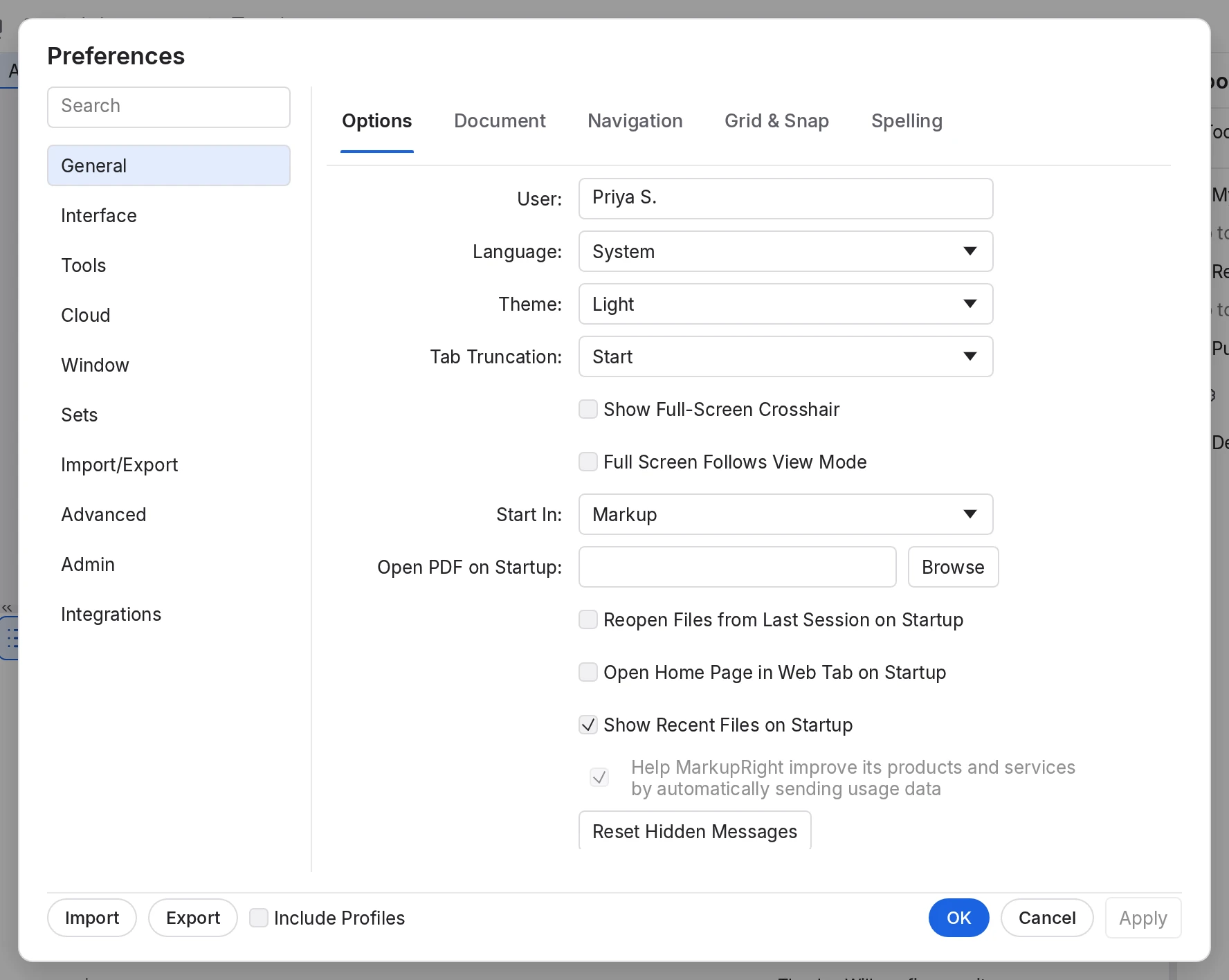
To put your name on your markups
- Choose MarkupRight ▸ Preferences Ctrl+Comma.
- On General ▸ Options, type your name in User, for example Priya S.
- Click OK.
New markups carry your name as their author, in the Properties panel and the Markups List.
 1
2
3
4
- General ▸ Options. Groups on the left, their pages as tabs along the top.
- User. Your name on markups. Left empty, MarkupRight uses your computer sign-in name.
- Theme. System, Light or Dark for the MarkupRight window.
- OK. Saves and closes. Apply saves and keeps the dialog open.
Your trial and licence
MarkupRight runs as a full trial for 30 days from the first launch. After that it needs a licence key, which you activate on each computer you use. MarkupRight goes online only to activate, renew and deactivate; the rest of the time it works offline.
The 30-day trial
- Everything works during the trial except Collab, which comes with a Team licence.
- The status bar counts down, for example "Trial: 30 days left", and MarkupRight ▸ About shows the same. Click the notice to register.
- When the trial ends, MarkupRight switches to viewer mode until you register.
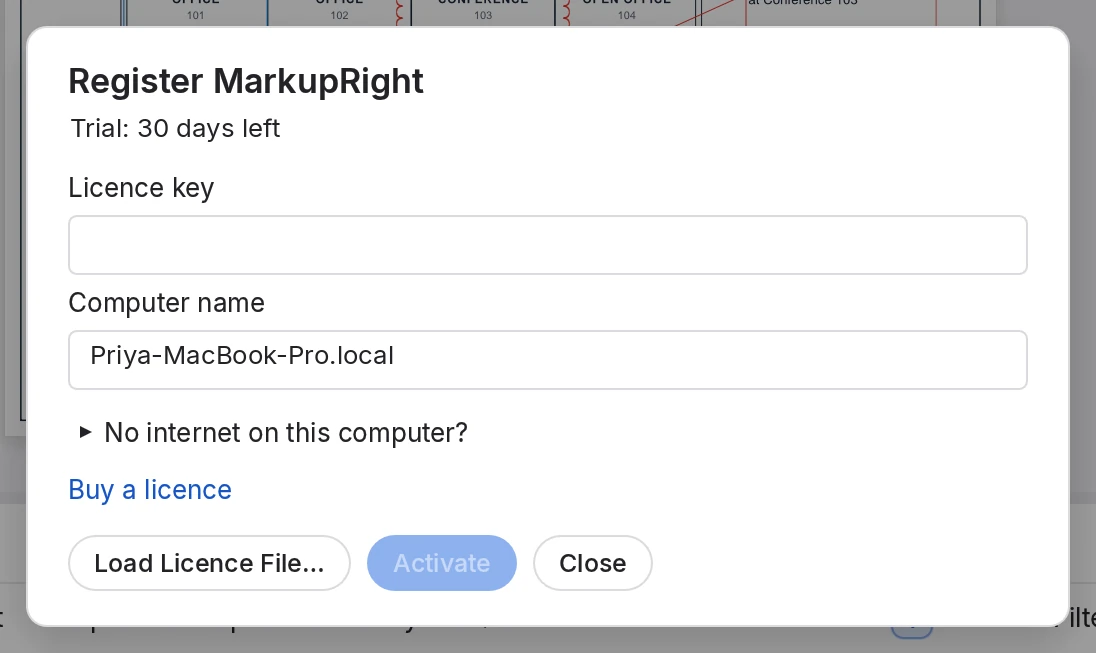
To register MarkupRight
- Choose Help ▸ Licence ▸ Register…. You can also click the licence notice in the status bar, or Register… in About.
- Type or paste your Licence key from your purchase email.
- Check the Computer name. It's filled in for you, and it's the name your licence's list of computers shows.
- Click Activate, or press Enter.
"Activating…" appears, then a notice such as "MarkupRight is registered: Individual licence for Priya S." Everything unlocks at once.
 1
2
3
4
5
- State. Trial days left, viewer mode and why, or who the copy is registered to.
- Licence key. From your purchase email. Activate lights up once you type it.
- Computer name. How this computer appears in your licence's list of computers.
- No internet on this computer? This computer's code, for a licence file from support.
- Load Licence File… Loads a licence file you were sent.
If activation doesn't work, the dialog says why:
- "That licence key wasn't recognised. Check it against your purchase email."
- "This licence is already active on all the computers it allows." With an Individual licence, the dialog lists your computers (name, platform and date), each with Deactivate: free one and this computer activates straight away. With a Team licence, ask your MarkupRight administrator to free a seat.
- "MarkupRight couldn't reach the licence server: …" Check your connection, or use a licence file (below).
To register a computer without internet
- In Register, open No internet on this computer? and click Copy to copy this computer's code.
- Send the code to MarkupRight support. You get a licence file (
.lic) back. - Choose Help ▸ Licence ▸ Load Licence File…, or click Load Licence File… in Register, and pick the file.
The licence applies at once. A file made for another computer is refused with "This licence file is for a different computer."
A registered copy that's online renews its licence quietly at startup. It can go 30 days without a connection: in the last 7 the status bar says "Connect to the internet to renew your licence (N days left)", and after 30 it switches to viewer mode until it reconnects or you load a licence file.
To move your licence to another computer
- On the old computer, choose Help ▸ Licence ▸ Deactivate This Computer. About has the same link.
- In Deactivate This Computer?, click Deactivate.
The seat is free for another computer. MarkupRight keeps working until you quit; at the next start it needs a licence again.
- Register on the new computer.
Deactivate works only for a licence activated on this computer; otherwise its tooltip says "Only a licence activated on this computer can be deactivated here".
Viewer mode
Without a working licence, MarkupRight becomes a viewer. A bar under the toolbars gives the reason, for example "Viewer mode: your 30-day trial has ended. You can open, view, search and print.", with Buy and Register… buttons.
| In viewer mode | |
|---|---|
| Still works: opening and closing files, moving between pages, zoom, reading and selecting markups, selecting text, search (including Visual Search), printing, WebTabs, panels, splits and Profiles, Preferences, checking signatures, and moving through a Set. | |
| Needs a licence: saving, markup and measure tools, page and content edits, signing, redaction, export and Batch. These are grayed out with the tooltip "Needs a licence". |
A licence that ends or is withdrawn takes effect at the next start, never while you're working. If the bar says your computer's clock is behind, correct the date and time, then restart MarkupRight.
Some copies of MarkupRight are built without licensing. If MarkupRight ▸ About and the Register dialog say "Licensing isn't enabled in this build", every feature is available, there's no trial countdown and there's nothing to register.
Updates
Copies installed from the macOS .dmg or the Windows installer update themselves. MSI copies get their updates from your IT team, and the browser version is always the latest.
 1
2
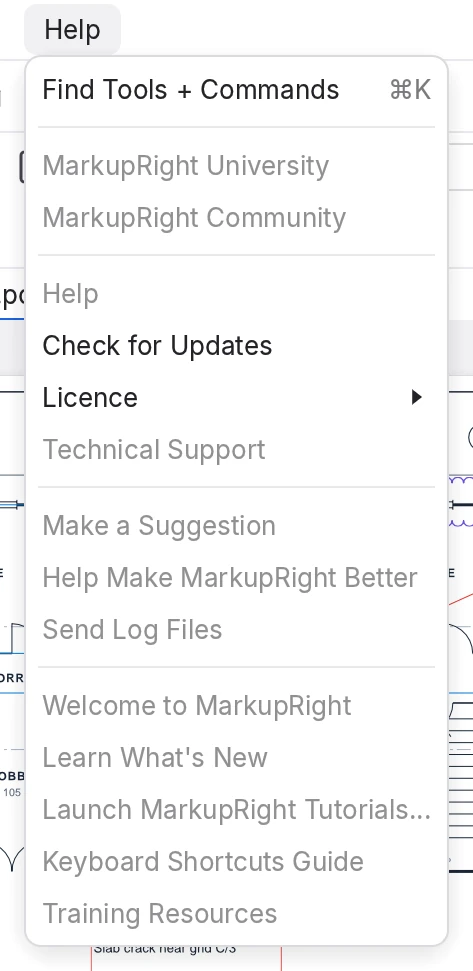
- Check for Updates. Looks for a newer version now.
- Licence. Register…, Load Licence File… and Deactivate This Computer.
To update MarkupRight
- Choose Help ▸ Check for Updates.
"Checking for updates…", then either "MarkupRight X is up to date" or "MarkupRight X is available" with the release date and notes, where X is a version number.
- Click Download. A progress bar shows the download; Hide lets you keep working while it finishes.
- When "MarkupRight X is ready to install" appears, click Restart to Update.
MarkupRight asks you to save your documents, closes, installs the update and starts again.
Later installs the update when you next quit. Nothing installs while the window is open.
MarkupRight also checks by itself after it starts, at most once a day. It stays quiet unless it finds an update, and then shows the same dialog. Remind Me Later stops the startup offer for 3 days; Skip This Version stops it for that version for good (critical updates can't be skipped). Help ▸ Check for Updates always checks, whatever you chose. Until an update is installed, the status bar shows "MarkupRight X is available", "Downloading update… N%" or "Restart to update"; click it to open the dialog.
Update settings and channels
These are in Preferences ▸ Admin ▸ Options:
| Setting | Default | What it does |
|---|---|---|
| Check for Updates | On | Off stops the startup check only; Help ▸ Check for Updates still works. |
| Check When MarkupRight Starts | On | The automatic check after startup. |
| Update Channel | Automatic | Stable or Beta releases. Automatic means Beta if you're running a beta, Stable otherwise. |
If you switch from Beta to Stable, you keep the beta until a newer stable release comes out.
Check the installation from the command line
Two commands confirm what's installed and that the PDF engine works, without opening the window. In Terminal:On Windows, type them as markupright-cli, which sits beside markupright.exe in the MarkupRight folder. In Command Prompt:
/Applications/MarkupRight.app/Contents/MacOS/markupright --version
/Applications/MarkupRight.app/Contents/MacOS/markupright --selftest
cd /d "%LOCALAPPDATA%\MarkupRight"
markupright-cli --version
markupright-cli --selftestA working copy answers:
MarkupRight 1.0.1
self-test passed: new document, markup, save, reopen, render
For an MSI install, change to C:\Program Files\MarkupRight instead. Why a second program? markupright.exe is a windowed program, so no console window opens behind MarkupRight, but that also means a terminal neither shows its output nor waits for it. markupright-cli runs it, passes the output through, returns its exit code and stops it if you press Ctrl+C.
Where settings and logs live
| What | Windows | macOS |
|---|---|---|
| Settings: preferences, Profiles, the last session, window positions | %APPDATA%\MarkupRight | ~/Library/Application Support/MarkupRight |
| Data: logs, crash recovery, licence, Collab, backups, downloaded updates | %LOCALAPPDATA%\MarkupRight | The same folder as settings |
Machine-wide, for IT: policy.json, site licences | %ProgramData%\MarkupRight | /Library/Application Support/MarkupRight |
Logs are in the logs folder of the data folder, one file a day (markupright-YYYY-MM-DD.log), kept for 14 days. They hold only warnings and errors unless Preferences ▸ Admin ▸ Options ▸ Extended Debugging is on (it takes effect after a restart). Explore Log Folder on the same page opens the folder. Nothing is sent anywhere: if support asks for logs, attach the files yourself.
With the Windows installer, the program folder and the data folder are the same, %LOCALAPPDATA%\MarkupRight. To start afresh, use Reset in Preferences ▸ Admin ▸ Options, which backs up your settings first.
For power users Expert
In the commands below, markupright stands for the program: /Applications/MarkupRight.app/Contents/MacOS/markupright on a Mac, markupright-cli in a Windows terminal.
- Silent install.
setup.exe /Sinstalls the Windows per-user copy without questions. - Licences from scripts.
markupright --activate <key> [--name <computer>],--deactivate,--license-file <path> [--machine]and--license-status.--machinewrites to the machine-wide folder and needs administrator rights.--license-statusprints one JSON line for inventory scripts, withstate(licensed, trial, viewer or development),tier,licensee,licence_ends,file_expires,source,days_leftandreason. Exit codes: 0 done, 2 usage, 3 viewer mode, 4 refused, 5 network. - Air-gapped offices. Put a site licence at
licence/markupright.licin the machine-wide folder, or run--license-file <path> --machineon each computer. - Update checks from scripts.
markupright --check-update [--channel stable|beta]prints "MarkupRight X is available (stable channel; you have Y)" or "… is up to date". It never downloads, ignorespolicy.json, and exits 0 with an answer, 2 for a usage error, 5 when the update feed can't be read. - How updates install. Downloads are signature-checked, and a bad one is deleted. On macOS the app is replaced in place, asking for an administrator's password if Applications isn't writable. If an install fails, the next start says so, and Help ▸ Check for Updates tries again.
- No
--help. An argument MarkupRight doesn't recognise is treated as a file to open, and the window opens. - Preference keys.
updates.enabled,updates.check_on_startup,updates.channel(auto,stable,beta),general.user_name, andgeneral.eula_accepted, which holds the agreement version a user accepted. More commands are in Command line and AI agents.